Readers arriving from hyper3d will find a practical explanation for AR models that look too large or too small, plus the file-scale and viewer-scale checks that correct the problem before publication.
An AR model can look convincing on screen and still appear enormous or tiny when placed in a room. The usual cause is not the phone: the file has no reliable real-world dimensions, or the viewer lets people resize it.
The short version
- A model made from a photo has an arbitrary scale. Its proportions may look right, but the photo does not tell the software its real dimensions.
- In glTF, 1 unit equals 1 meter. Set the object’s actual dimensions in Blender, apply scale, and export the GLB again.
- Check the resulting file on a phone, then prevent resizing in the AR viewer if true size matters.
- Treat slow loading as a separate problem: inspect triangle count, file size, and texture resolution rather than changing the model’s dimensions.
Find out which size problem you have
I start by separating shape, file scale, and viewer scale. Shape is whether the model resembles the object. File scale is the physical size recorded in its geometry. Viewer scale is what happens after someone places and possibly pinches it in AR. A good-looking chair can fail the second and third checks while passing the first.
3D Studio’s guide to AR 3D models starts with a photo and explains why the resulting model needs real dimensions set before it is placed in a room. That distinction matters with any photo-generated mesh: a picture shows relative proportions, not a dependable measurement. The software can make a seat and back that look plausible without knowing how wide the chair is.
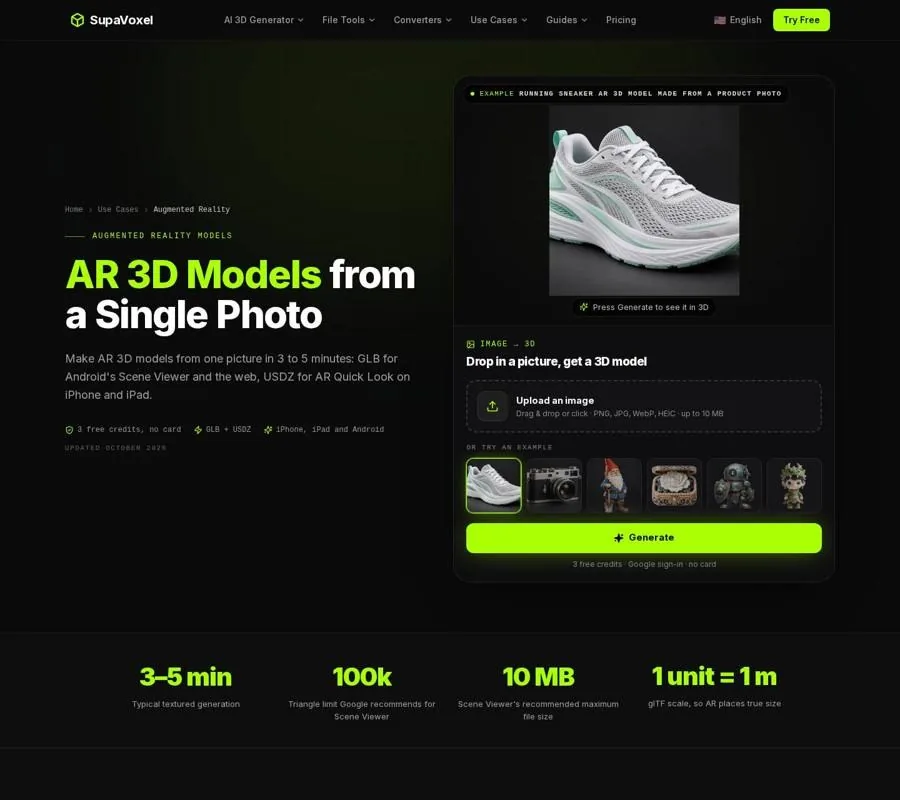
The AR page shows the model workflow; the size correction is a separate step before publication.
Ask a simple question before editing: Does the file itself have the wrong dimensions, or did it become the wrong size only after placement? Open the file in a tool that reports dimensions. If those dimensions are wrong, fix the file. If they are right but a placed model changes size after a gesture, check the viewer settings. Changing the file to compensate for someone’s pinch gesture will only create another incorrect file.
Correct the GLB in Blender
The scale convention is straightforward but easy to miss: glTF treats 1 unit as 1 meter. A vase that is 30 cm tall should therefore be 0.3 units tall in the GLB. An AI-generated model does not automatically acquire that height just because it looks like a vase.
Here is the repair sequence I use:
- Get a trustworthy measurement. Use the object’s listed dimensions or measure the real object. Do not estimate size from the generated mesh. If the object is furniture, note its width, depth, and height so you can check more than one direction.
- Import the GLB into Blender. Inspect the model and open the N panel to see its Dimensions. These values tell you what size you currently have, not what size the object ought to be.
- Enter the real dimensions in meters. Set the relevant width, depth, and height. Check that the result still has sensible proportions. If one dimension is right but another is visibly wrong, changing overall scale alone cannot repair the underlying geometry.
- Apply scale and re-export. Applying scale makes the corrected size part of the exported geometry rather than leaving a scale adjustment that another tool may interpret differently. Open the new GLB and inspect its dimensions again before moving on.
Be careful with unit conversion here. A model authored in centimeters can be consistently oversized when read as meters. An AI model with arbitrary scale presents a different problem: switching a unit label cannot tell you its real height. Give that model a measured dimension instead.
Also inspect where the object sits relative to its base. If the GLB includes a ground plane or backdrop, an AR viewer may place that geometry along with the object. For an object meant to stand on a floor, its base should sit at the bottom of the model’s bounds.
Use furniture specifications as a reality check
Furniture makes a useful scale test because product listings often give width, depth, and height. 3D Studio’s interior design 3D model workflow calls for taking those dimensions from the listing, entering them in Blender, and applying scale before using the piece in a render or AR.
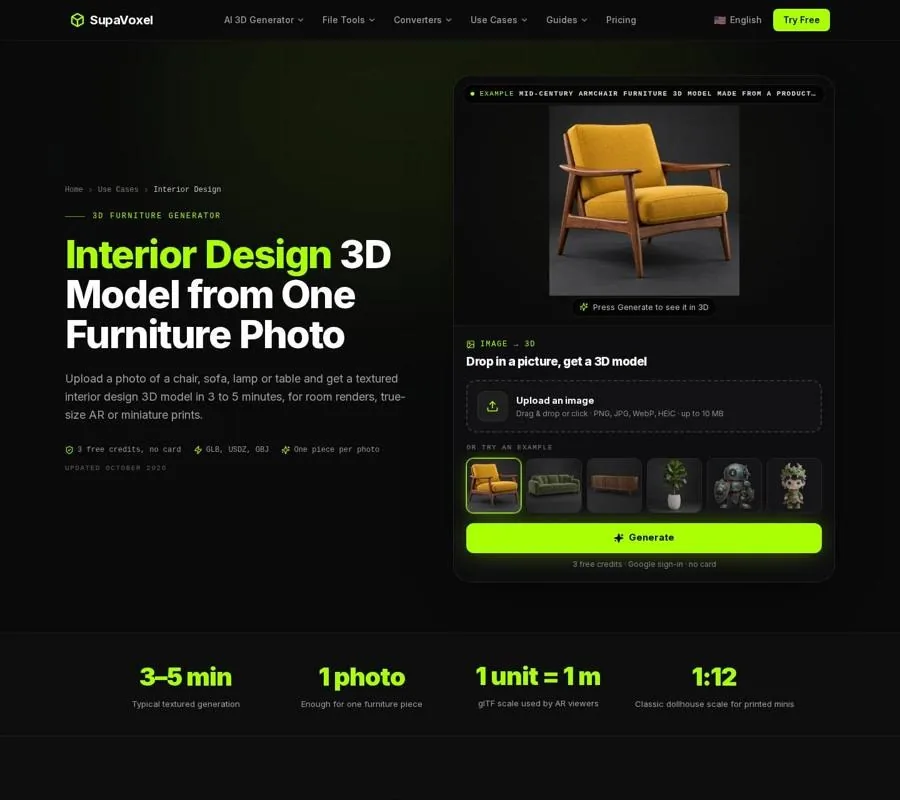
The furniture workflow uses known product dimensions to correct a photo-generated model’s arbitrary scale.
Those measurements establish the object’s overall size; they do not prove that every detail is accurate. A generated armrest may look credible while its height is wrong, or the spacing between legs may differ from the physical piece. Matching the outer dimensions will not turn a reconstruction into a measured scan or a manufacturing drawing.
That is why I check the task as well as the bounding box. For a room preview, the overall footprint and height are especially important: a chair should occupy a believable amount of floor and sit at a believable height beside other furniture. If someone needs an exact fit, state the real product dimensions alongside the AR preview rather than treating the mesh as the specification.
Convert after the GLB measures correctly
If the model is destined for an iPhone or iPad, you may need a USDZ as well as the GLB used for Android AR. Make the GLB’s dimensions correct before creating that second file. Otherwise, you have two files carrying the same mistake.
3D Studio’s GLB to USDZ converter shows an Output size in meters and offers a File units control. That is a useful final check. If a chair reads 90 m because its source GLB was authored in centimeters, select cm and check the output size again. If the GLB came from an AI model with no known scale, go back and set measured dimensions; the units control cannot infer them.

The converter displays output size in meters, making an obvious unit mismatch easier to catch.
The converter keeps textures and PBR material maps, but it exports animation in a resting pose and caps texture resolution at 1024 px. After conversion, open the USDZ on an actual iPhone or iPad. A desktop preview can show a nicely framed object without revealing how wrong its room-scale placement feels.
Stop the viewer from changing a correct size
A correctly sized file can still give a misleading demonstration if visitors are allowed to resize it. For a product that must appear at its real dimensions, set ar-scale="fixed" in a <model-viewer> embed. For an Android Scene Viewer link, use resizable=false. These settings address viewer behavior; they do not repair a GLB or USDZ whose dimensions are already wrong.
Test the placed object on an iPhone and an Android phone before relying on it. Compare it with a known physical reference and look at how its base meets the detected surface. If one platform looks wrong, inspect the file that platform received rather than assuming both are showing the same asset. The aim is not merely a model that can be made to look right by pinching it. It is a model that arrives at the right size.
Keep loading problems separate from scale problems
Sometimes “the AR model is wrong” means that it loads slowly or struggles to display. Rescaling the object will not reduce its triangle count or texture weight. For Android Scene Viewer, Google’s guidance cited on the AR page recommends fewer than 100,000 triangles, with 30,000–50,000 ideal; a file under 10 MB; and textures no larger than 2048 × 2048.
Inspect those properties independently after fixing dimensions. If the mesh is dense, simplify it while watching whether its silhouette and important details survive. If textures dominate the file, reduce them while checking the appearance on a phone. Do not confuse a smaller download with a smaller object in the room: one concerns file weight, the other concerns physical dimensions.
FAQ
Why does my model look right in a viewer but huge in AR?
A viewer can frame an object to fit its window regardless of its physical dimensions. AR places it using the dimensions stored in the file. Check the GLB’s size in meters, correct it, apply scale, and export again.
Can I fix an arbitrary AI model by switching from meters to centimeters?
Only if the source was actually authored in centimeters. A photo-generated model may have no meaningful unit scale at all. Use a real measurement to set its dimensions instead of guessing a unit conversion.
Should I fix size in the GLB or the USDZ?
Correct the source GLB and verify its dimensions before conversion, then check the USDZ’s output size and test it on an Apple device. Fixing the source avoids maintaining different size guesses for each phone platform.