If you came to hyper3d with an FBX-to-GLB export that lacks animation or shows gray materials, this guide explains how to check the source, texture references, and converted file.
An FBX can look complete in a 3D app while depending on texture files or rig controls that do not travel with it. I troubleshoot a missing animation or gray material by checking the source first, then checking what the GLB actually contains.
The short version
- No animation? Check whether the FBX contains animation clips before converting. Bake IK and constraints to bone keyframes in your animation app.
- No textures? Check whether the images are embedded or merely referenced by paths. Supply the image files alongside the FBX if they are external.
- Different-looking materials? FBX Phong and Lambert materials are approximated as glTF PBR materials. A changed highlight does not necessarily mean a missing texture.
- Still unsure? Inspect the source and the exported GLB separately. Changing file containers will not restore data that was absent from the source.
Trace the problem back to the FBX
The FBX to GLB converter shows a preview and a clip count before conversion, so use those readouts before treating the downloaded file as the problem. It can carry over meshes, skeletons, skin weights, animation takes and blend shapes, but it cannot invent a clip that the FBX does not contain.
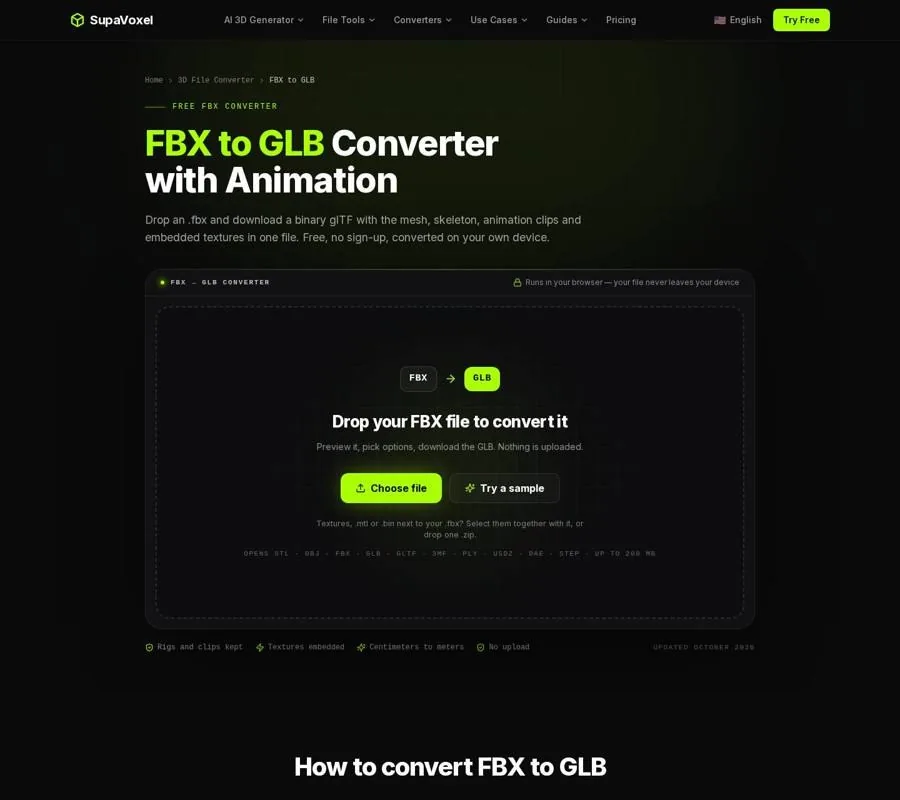
The converter lets you inspect the incoming FBX and its detected content before exporting.
I work through the checks in this order:
- Open the source FBX. Look for the expected pose, materials and animation takes, rather than relying on how the asset looked in its authoring project.
- Read the detected clip count. The converter’s What carries over panel lists the animation clips it found. If the expected motion is not there, return to the FBX export settings and source animation.
- Check the texture warning. An amber note identifies referenced images that were not supplied. A material can have a color while its image map is missing.
- Convert with textures enabled. Keep textures is on by default. Switching it off deliberately removes images and leaves geometry with flat material colors.
- Open the result in a viewer. Compare its motion, surfaces and size with the source. This separates an export problem from a problem in the app where you plan to use the GLB.
For a closer source check, 3D Studio’s FBX viewer lets you play clips, switch between them, inspect mesh and material counts, and see which external textures were not included. I use its rest pose and timeline controls when a single still pose makes an animated asset appear static.
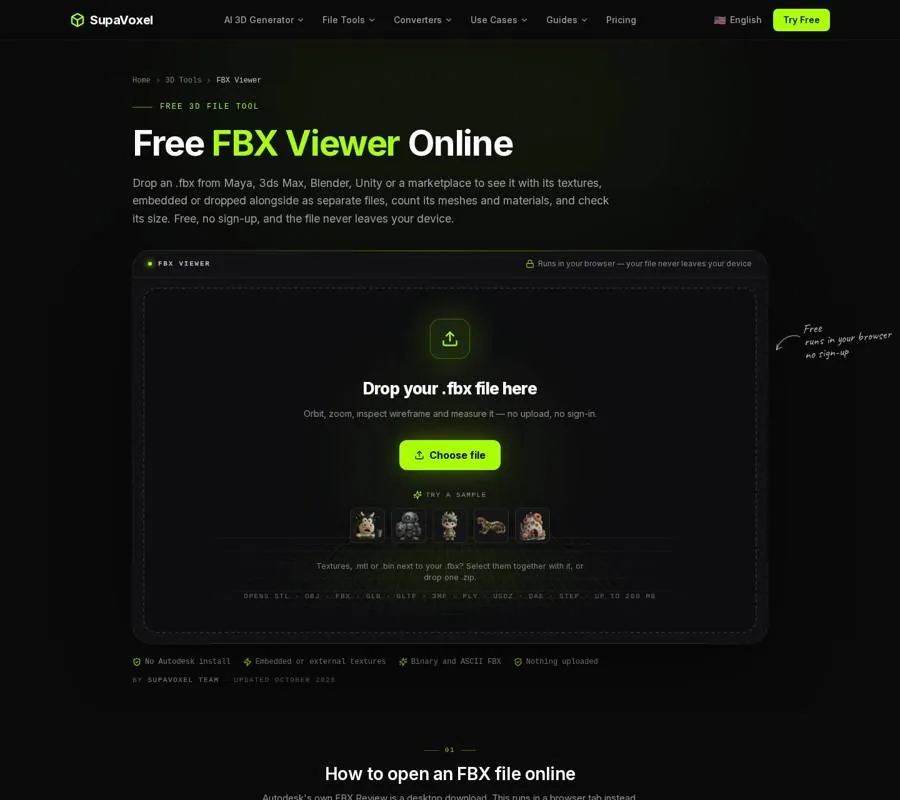
The viewer helps distinguish a missing source clip from motion that is hard to spot in a still preview.
Recover textures that live outside the file
An FBX does not have to contain its image files. It may instead store a path pointing to an image on the artist’s computer. That path tells you what the material expects, but it does not give a browser access to the image. If you received only the FBX, the mesh may open while its painted detail does not.
The practical fix is to provide the images with the model. Select the FBX and its texture files together, or drop a zip containing them. The converter matches external images by file name and can then embed them in the resulting GLB. If you control the original export, embedding media in the FBX is another way to make the source self-contained.
Do not confuse a missing image with an intentionally untextured material. First check the missing-file note, then check Keep textures. If the images are present but that switch is off, the smaller output is expected: you asked for the geometry and flat material colors without the images.
This is also why sending someone a GLB can be simpler than sending a folder of FBX dependencies. The converted GLB holds its included texture images with the scene. It does not, however, recover an external image you never supplied.
Bake rig controls before expecting motion
A rig in an animation app may use IK solvers and constraints to calculate where bones should go. Those controls are useful for posing and editing, but glTF does not store them as rig-building tools. It stores the resulting animation on the skeleton. If the motion depends on controls that were not baked into keyframes for export, an apparently working source project can produce an FBX with no usable motion for the GLB.
Bake the motion in the animation app, export the FBX again, and check its clip count before converting. The converter preserves skeletons and skin weights and passes detected animation takes through as clips. It also preserves blend shapes as morph targets. None of that substitutes for baking motion that still exists only as IK or constraint behavior.
A good diagnosis asks two different questions: Does the FBX contain an animation take? and Does that take contain the resulting motion I meant to export? A listed clip answers the first question, not necessarily the second. Play and scrub the FBX in the viewer before blaming the GLB if a joint pops, a character stays in its rest pose, or the wrong take appears to be playing.
Treat changed highlights as a material problem
Sometimes the texture is present, but the surface still looks wrong. Many FBX materials use Phong or Lambert shading; glTF uses physically based metallic-roughness materials. The converter approximates the older material settings in the new model. Colors and images can carry over while highlights, metalness and roughness need attention.
Start by deciding what changed. If painted details have vanished, investigate missing images. If the details remain but a shiny object looks dull, inspect the material values in a glTF-aware editor or your engine. Rebuilding a reflective surface there is more useful than repeatedly converting the same FBX and hoping its original shading controls map perfectly.
Lighting can change your impression too. Compare the texture and material settings, not just screenshots from differently lit viewers. A dull highlight alone is weak evidence that the converter discarded an image.
Check the GLB as a package, not just a picture
GLB and glTF carry the same kind of scene data. Their important difference for this job is packaging: a GLB puts the scene description and binary content into a single file, while a separate-file glTF can refer to nearby buffers and images. 3D Studio’s GLB vs glTF guide is useful if you need to decide which package to hand off or inspect a scene description.

The guide shows how the same glTF scene can be delivered as a single GLB or as files kept together.
That distinction prevents a common detour: renaming a file or choosing another glTF package does not create missing clips or textures. Likewise, sending only a separate .gltf file without its referenced images can make a sound export appear broken at the receiving end. Keep the side files together when testing that form; use the GLB when you need to hand over a self-contained result.
Also check scale separately from appearance. glTF measures distance in meters, while FBX files commonly use centimeters. The converter handles that conversion, and its file-unit setting lets you correct a source authored in another unit. An unexpected size is a units question, not evidence that the rig or texture failed.
Do not use a static AR export as an animation fix
If the final destination is Apple’s AR Quick Look, 3D Studio’s FBX to USDZ converter serves a different purpose: it makes a USDZ for viewing the model in AR. It can include supplied textures, but this particular converter bakes a skinned character into its rest pose and drops animation takes.
That makes it a sensible branch for a static AR preview, not a workaround for missing GLB motion. Diagnose and bake the FBX animation for an animated GLB; choose the USDZ path only when a static model meets the task.
FAQ
Why does the GLB have a skeleton but no visible animation?
The skeleton and its skin weights can survive even when the expected motion is not present as an exported clip. Check the FBX clip count and bake IK or constraints to keyframes before exporting again.
Why are some textures present and others missing?
Some images may be embedded while others are referenced externally. Check the missing-file note and supply the named images with the FBX; also confirm that Keep textures remains on.
Does converting GLB to glTF restore missing content?
No. GLB and glTF package the same kind of scene data differently. Go back to the source FBX or its accompanying image files to recover content that never entered the GLB.